This is the part that means you do not have to keep a map open.
Follow a vessel to receive notices when AIS Fleet detects her getting under way or arriving. These are inferred from position reports, so they can be delayed or missed when coverage is limited. A departure notice names where she left from when we can identify the place; the e-mail also carries a map. An arrival notice names where she arrived, and where the passage began when we can tell. Each notice links to that vessel on your map, a boat that has since gone quiet included: the map goes to the position she last reported and says how old that report is.
A vessel that keeps her log with Saillogger and shares it names those places from her own logbook, and, where her owner publishes her individual trips, brings a map of the passage she has just completed. Her owner's photo of her leads the message where there is no map to show.
There is no digest. Three trips in a day is three departures and three arrivals, one notice each.
Where a notice reaches you
Choose how each boat's notices reach you.
- In AIS Fleet. The bell at the top of every screen carries a count and opens Notifications: what has happened, newest first, with one boat's movements gathered into a single entry so a busy vessel cannot push a quieter one out of view. Tapping an entry takes you to that vessel on the map.
- By e-mail, so it reaches you with AIS Fleet closed.
- By push in the iPhone app, when Push is available in Notification settings and you have enabled it on that phone. Departures, arrivals, new followers and fleet notices arrive quietly: look in Notification Center rather than waiting for a sound. Messages, station notices and a boat coming near yours can make a sound, and overnight, by that phone's own clock, they arrive quietly as well.
Push previews support international characters and emoji; long text may be shortened.
Opening the feed leaves notices unread until you tap them. Mark all read clears the displayed unread notices, and Load older goes back further.
Choosing what reaches you
Notification settings, reached from the gear on Notifications or from the account menu, is a grid: a row for each kind of notice, a Notifications switch that decides whether it reaches you at all, and E-mail beside it for the same notice in your inbox.
Notifications on a row puts that kind in your notifications on the website and in the app. E-mail is a way the same notice also reaches you, so it only sends while Notifications is on: turn Notifications off and E-mail is greyed beside it, with your choice kept for when you turn it back on.
In the iPhone app, Push sits beside E-mail as a second way to receive the same notice, on the same rows and on each boat, and follows the same rule. Push is set in the app, where the permission lives.
| Row | What it is | Ways to receive it |
|---|---|---|
| Followed boats | A boat you follow departs or arrives | E-mail, Push |
| New followers | Someone follows your boat, or adds her to a list | E-mail, Push |
| Direct messages | Another member writes to you | E-mail, Push |
| Fleet messages | Someone posts in a fleet you are in | E-mail, Push |
| Your stations | A receiver of yours goes quiet, and when it is back | E-mail, Push |
| Your fleets | A fleet you are in is paused by its organizer's plan, or ends | E-mail, Push |
| Your lists | A list you subscribe to is no longer shared, or ends | -- |
| Near your boat | A boat you watch comes within the distance you chose of your boat | E-mail, Push |
The two message rows have no Notifications switch: a message always appears in Messages, with its own unread count, and what you set is whether it also reaches your inbox or your phone. Your lists is the other way round: it appears in your notifications and is not sent anywhere else.
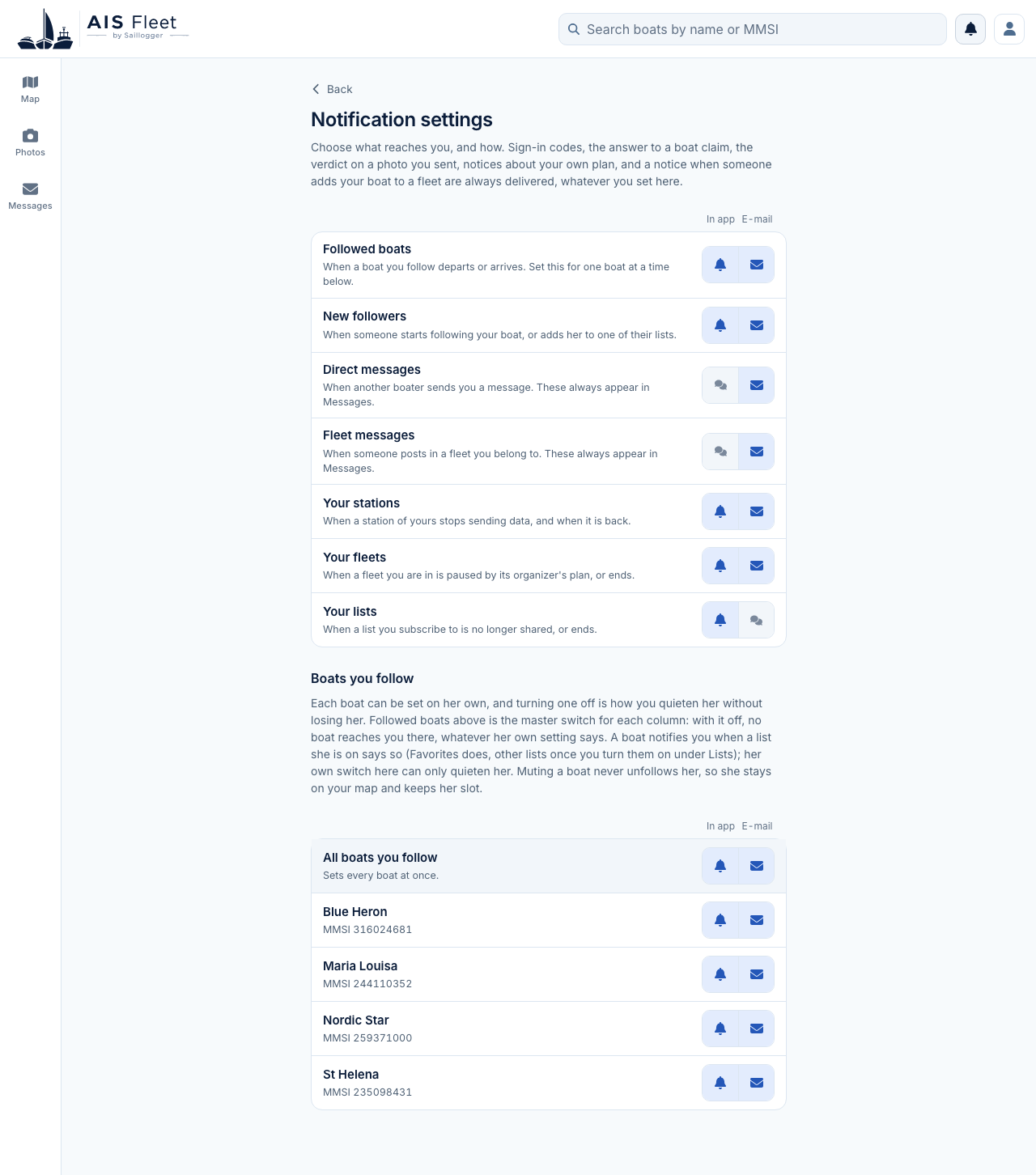
Notifications and e-mail start on, on every plan including the free one, and each e-mail carries a link back to that screen. When you enable push in the app, its switches start on except Fleet messages, which you turn on yourself. An existing per-boat e-mail mute also keeps that boat's push off until you choose otherwise.
Followed boats, New followers and Your fleets push quietly, without a sound, and land in Notification Center for you to find. Direct messages, Fleet messages, Your stations and Near your boat can make a sound, and overnight, by that phone's own clock, they are quiet too.
One boat at a time
Underneath the grid, Boats you follow lists your vessels with the same ways of receiving, so one boat can be set differently from the rest. A boat has E-mail here (and Push in the app) and no Notifications switch of her own: whether she appears in your notifications comes from the lists and fleets she is on. Turn off her E-mail switch and her notices stop reaching your inbox, while she stays where you can still find her.
Followed boats above controls departures and arrivals; Near your boat controls nearby notices. A boat's own switch quietens both kinds at once, and stays available while either kind is on. You can therefore quieten her departures and arrivals while she can still tell you when she comes near your boat. Her list or fleet must also have that kind of notice switched on.
When both kinds are off or unavailable, your per-boat choices are kept and shown greyed out. There is a filter when the list is long, and a row at the top that sets every boat at once.
The row says Saving until AIS Fleet confirms a change. If the connection is lost, that setting returns to the last confirmed choice instead of continuing to look saved. The same row then says Save not confirmed and offers Check again, so you do not have to scroll back through a long list to discover that muting did not finish.
The quickest way to quieten one vessel is from the notice itself: the ... on an entry about a boat you follow offers to mute the boat. That stops the e-mails and push notifications about her; she stays in your notifications, on your map, and keeps her slot, so you can find her whenever you want. Muting is not unfollowing. A notice about a boat you do not follow, one that reached you through a list, has no mute of its own: the list's own switches control those notices. Lists
To stop a boat appearing in your notifications altogether, turn the list or fleet she is on off, or take her off it.
What is always sent
Sign-in codes, the answer to a boat claim, the review result for a photo you sent, notices about your own plan, and a notice when somebody adds your boat to a fleet are not on that grid. They are sent because you asked for something or because something happened to your account, and they arrive whatever the switches say.
When a boat comes near yours
Besides telling you when a boat moves, a list or a fleet can tell you when one of its boats comes near your own boat. This needs your boat linked to your account and heard on AIS: the distance is measured from her last reported position, not from wherever you happen to be.
Where to set it
Open a list from Lists, or a fleet from Fleets, on the map, then open the Notifications row at the top of its roster, under the On the map switch. Its second line shows which notices are on. Behind it are two rows: When these boats depart or arrive, and When one of these boats comes within a distance of your boat. Each row has a Notifications switch and an E-mail switch beside it (and Push in the app), and the second row has a pull-down for the distance, from 1 to 20 nautical miles.
The same rows are on a list's settings page, and they are set separately for every list, every list you subscribe to, and every fleet. Favorites starts with both rows on, the distance at 3 nautical miles; every other list, every subscription and every fleet is quiet until you turn its rows on. A fleet's organizer cannot set them for you.
Existing e-mail and push choices are kept. A list or fleet previously set to e-mail without in-app notifications gains a place in your notifications while keeping push off.
On the list or fleet's page on the map, under the distance row, a line says how many of its boats are within that distance right now. Change the distance and the number changes with it. E-mail on a row is greyed until that row's Notifications switch is on, and when the matching switch under Notification settings is off, a line under the row says so.
The row appears once your boat has a position we can measure from. Until then, and if she has not been heard for a while, a line in its place says so, and nearby notices resume when she is heard again.
When you are told
You are told once per visit: when a boat comes into your chosen distance from outside it.
- A boat that is already inside when you switch the row on, or that has been inside all along, is not announced. Boats that share your marina are therefore not announced day after day, and switching the row off and on, or changing the distance, never announces the boats already there.
- A boat that is lying still is not announced when your own boat is the one moving: sailing past the berths of boats you follow, or coming home to your own pontoon, does not produce a notice for every moored boat you pass. A fresh report from the same berth does not count as movement. A boat that is under way is announced whether or not your own boat is moving.
- A boat that only drifts about the edge of the distance is not announced again. She is announced when she comes back once she has been well outside it, and away for long enough that it reads as a fresh visit rather than a short hop out and back.
- When several boats from one list or fleet come within the distance at the same time, for example a fleet arriving in an anchorage together, you get one notice naming boats with the same channel choices. Your per-boat switches still apply to these combined notices: a boat whose E-mail switch is off stays out of your inbox, and a boat whose Push switch is off stays off your phone.
A boat on more than one of your lists and fleets uses the largest distance you set for her, and the notice names the one whose distance triggered it.
What the notice says
In AIS Fleet the entry names the boat and the distance you chose, names the list or fleet whose distance triggered it, unless it is Favorites, and opens her on the map. A nearby notice about a boat you already have an unread notice for joins that same entry, which then counts her visits. The e-mail also says how far apart the two boats were and in which direction, whether she was under way, and when each boat was last heard, because the notice rests on those two reports. If your own boat's report is old, the e-mail says so.
Nearby notices are worked out from position reports as they arrive, so they follow the real event rather than arriving with it, and they can be missed where coverage is thin.
Turning them off
Near your boat in Notification settings is the switch for these notices, and a boat's own switch under Boats you follow quietens her nearby notices along with her movements. Muting the boat from a notice about her does the same. Without a boat linked, the row in Notification settings is shown but has no effect until you link one.
Following a cruise ship or a ferry
Cruise ships and ferries are often heard near busy ports and coasts, so searching the ship's name is a useful starting point. Coverage still varies along the route.
Their notices can be frequent. A ship calling somewhere most days is roughly two notices a day for the length of the voyage, and a working ferry is far more than that.
To receive fewer e-mails without unfollowing her, turn off her E-mail switch: her notices stop reaching your inbox, while she stays where you can still find her. Her entries in Notifications are gathered together too, so a day of ferry crossings reads as one line rather than many.
The same applies to a ferry whose route passes near your boat: she is announced when she comes within your distance, and again only after she has been away for a while, and her E-mail switch decides whether those notices reach your inbox.
On a longer ocean leg she can go quiet for days and reappear as she comes back into range. A marker that has not moved is telling you when she was last heard, not that she has stopped.
Watching someone who is aboard
If someone you care about is aboard, here is what AIS Fleet can and cannot tell you about gaps in updates:
- Long gaps can result from limited coverage. AIS is a line-of-sight radio signal, so an offshore vessel may be beyond receiving stations for days. The absence of reports cannot establish the vessel's condition. Where the positions come from
- A departure or arrival notice can be late, or may not come at all. They are worked out from her movement rather than announced by the vessel, so they follow the real event rather than arriving with it. A missing notice is not evidence about the vessel.
- The last-heard time on her panel is the more reliable number. Notifications are a record of what has happened; her panel is what we currently know.
- A move to another berth, or an anchor dragging, can look like a short trip. If you get a departure and an arrival ten minutes apart in the same harbour, that is usually what it was.
- Working ships keep working schedules. A training ship, a research vessel or a supply boat may sit for two weeks and then move three times in a day. Neither is a signal about anybody aboard.
Before a passage, it can help to agree with the person aboard how and when you will hear from them, allowing for the communication options available on their vessel.